Print a ChatGPT or DeepSeek chat to PDF.
Extry does not convert anything to PDF — your browser does, from a single press of the PDF button. The text stays selectable, the links keep working, and nothing is uploaded to a converter.
Why through the browser
A bundled converter makes a picture of a chat
Text stops being searchable, links stop being links, and anything the library cannot shape — an emoji, an Arabic quote, a Korean name — comes out as a box.
The browser already has a typesetting engine that handles all of it, and it is the same engine that rendered the conversation in the first place.
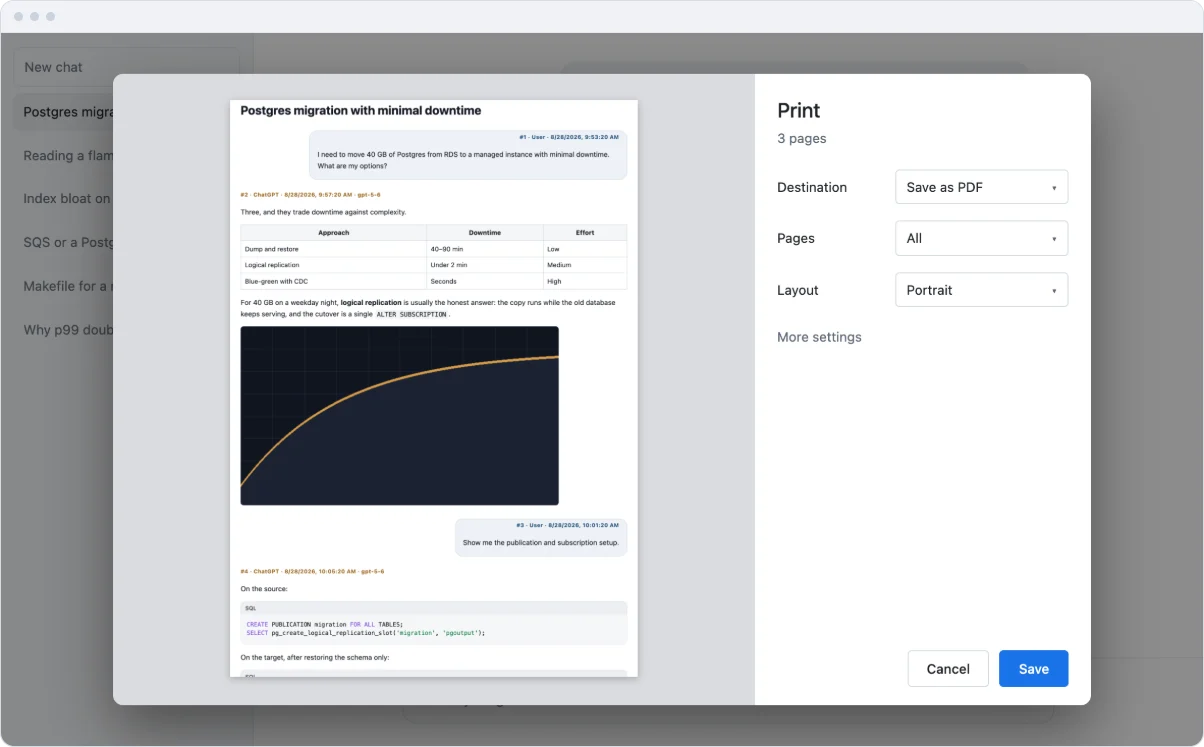
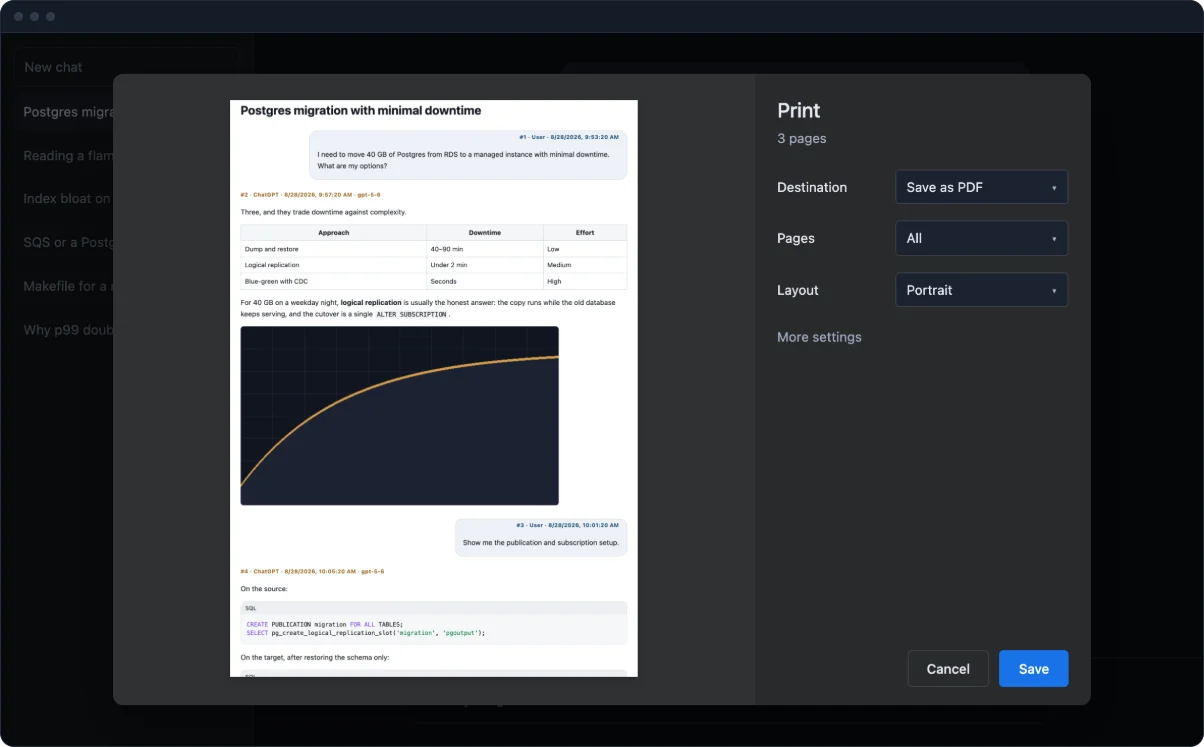
What survives
What ends up on the page
Selectable text
Search inside the PDF, copy out of it, feed it to anything that reads documents.
Working links
Every reference in the conversation stays clickable on the page.
Pictures in place
The page carries its pictures inside it, so none come out as holes on paper, when attachments are on in Export — the default. The paper starts with the conversation itself, not a header of dates and a link back.
Your selection
Tick only the messages you want in the panel’s list for “This chat”, and PDF prints just those.
What the browser decides
Where the control ends
Page breaks and headers are the print dialog’s call. Extry’s settings, under “Printing and PDF,” set the paper size, orientation, margins and page numbers, and Chrome reads them automatically; Safari does not, so there you choose paper and orientation in the print window itself.
Control beyond that is what a typeset PDF adds, and it is planned as a paid extra later. Printing itself runs on your machine: the browser does the work, and it stays on your machine.
How it works
How to print a chat to PDF
- Open the conversation in ChatGPT or DeepSeek and click the Extry button on the page.
- Open Export and press PDF, the separate button below the formats.
- In the print dialog, choose Save as PDF as the destination and press Save.
The dialog opens right over the chat — no new tab, no download until you save it there. Only on the “This chat” tab, not “All chats.” If the site blocks that, Extry opens the copy in a new tab and prints from there. The small pinned shape offers the same button, listed as “PDF · printed.”
Processing
Where each part runs
| What | Where it happens |
|---|---|
| Export to every format | In your browser |
| Attachments and images | In your browser |
| Conversation content | Not sent anywhere |
| Usage statistics | Not collected |
| Typeset PDF (later, opt-in) | On a server, file deleted right after |
FAQ
About printing to PDF
How do I print a ChatGPT or DeepSeek conversation to PDF?
Open Export and press PDF, below the formats. The sheet closes, Extry builds the page with its pictures embedded, and the browser’s print dialog opens over the chat. Choose Save as PDF there and press Save — one press, nothing to open afterwards.
Is the PDF searchable?
Yes. The browser prints real text, so it stays selectable and searchable — it is not an image of the conversation.
Do the links work in the PDF?
Yes. They are printed as links, unlike the Word export, where the address is not attached.
Does printing to PDF need anything from Extry?
No download. Extry builds the copy in the background and hands it straight to the browser’s print dialog.
Can I print only part of a conversation?
Yes. Tick only the messages you want in the panel before pressing PDF; printing follows the selection. A copy saved earlier as HTML has its own Save as PDF button, and there it is the hide-messages-or-answers filters that apply.
More
Other ways out
Other routes for the same conversation: Word, Markdown, LaTeX, the ZIP export with attachments, the bulk export, the main page.