Export your ChatGPT and DeepSeek chats without doing it one at a time.
One conversation at a time is fine until the list gets long. Extry walks your whole history and writes every conversation into a single archive — a folder per chat, with an index page listing them.
- index.html26.3 KBcontents
- 001_pricing-model/pricing-model.md18.4 KBmarkdown
- 001_pricing-model/files/budget-q3.xlsx88.6 KBattachment
- 002_api-migration/api-migration.md44.1 KBmarkdown
- 003_hiring-loop/hiring-loop.md12.7 KBmarkdown
- images.html14.2 KBgallery
Why bother
A conversation list is not a filing system
It lives in an account, behind a login, on a service that decides how long the history stays and how far back the scroll goes. Nothing there is yours in the sense that a folder on your disk is yours.
Exporting turns the list into files: greppable, backed up by whatever already backs up your machine, readable without a login.
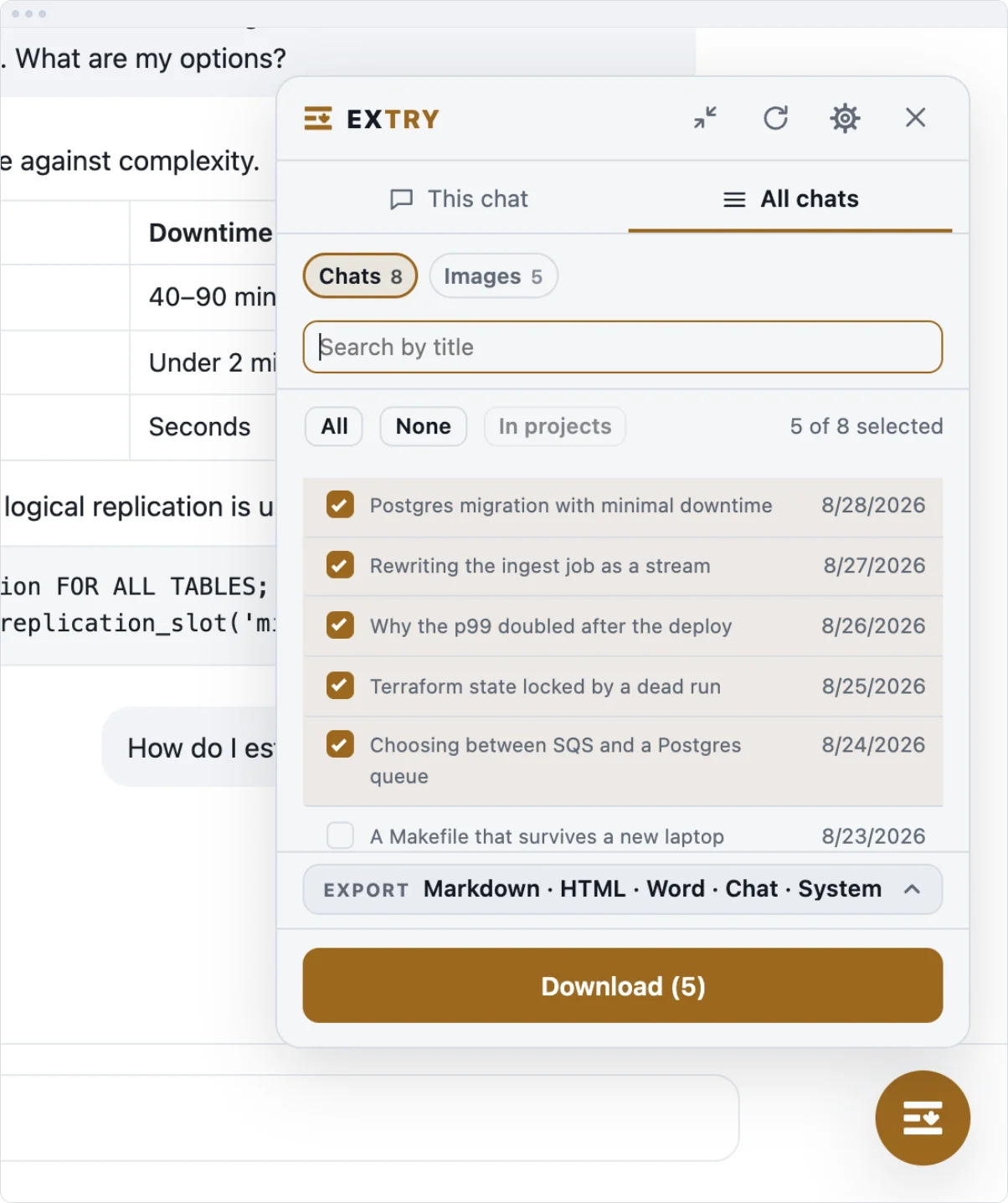
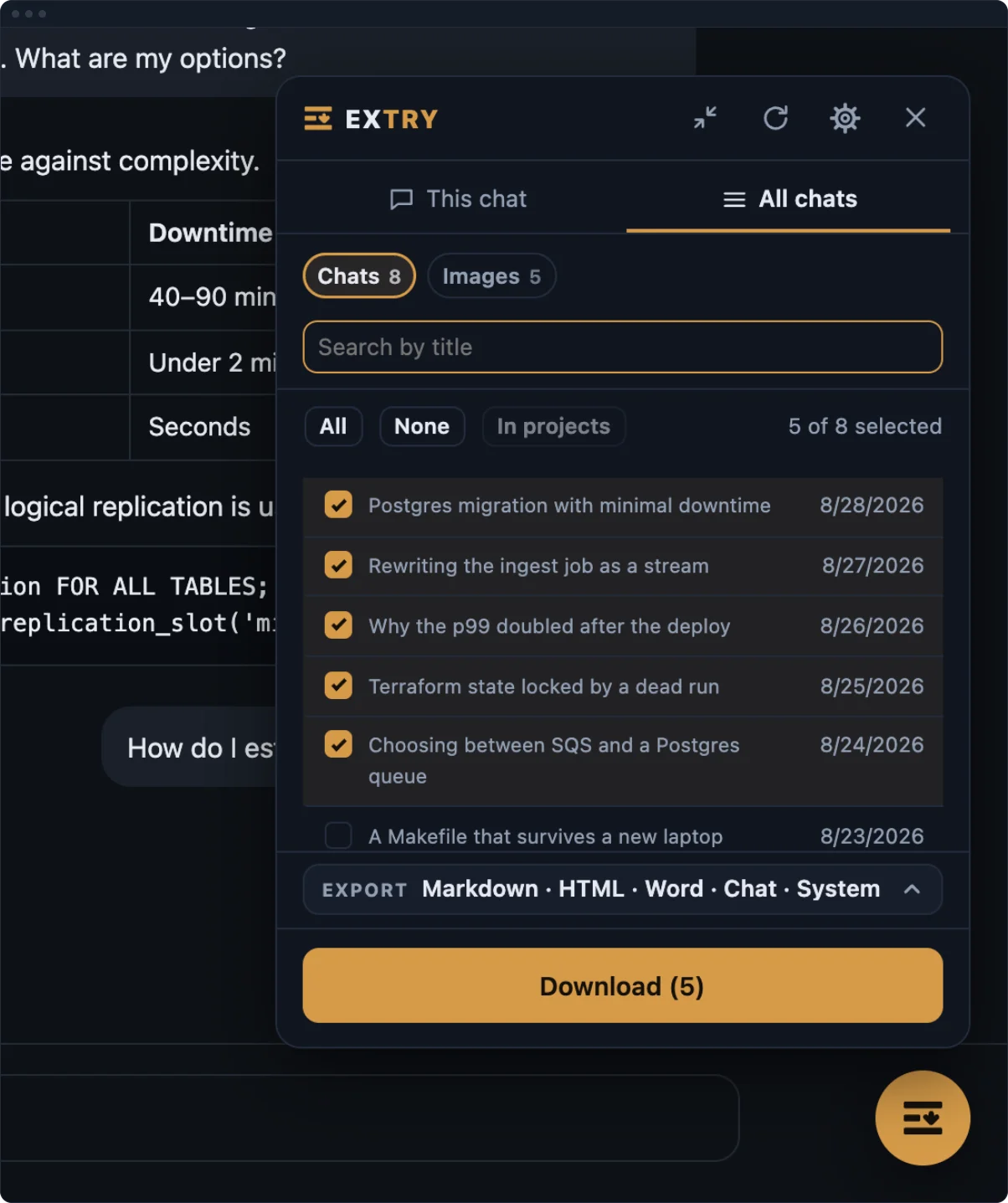
What comes out
One archive, one folder per chat
Each conversation gets its own numbered folder, named after the chat, holding the transcript and the files that were in it — not one long document you have to split apart later.
At the top of the archive there is an index.html listing every conversation with its date, message count, and the models used, so the archive has a front door instead of a wall of folders. If any chat has images, they also collect into a single gallery page.
A conversation that fails to download does not stop the run. It lands in the index marked as failed, so you can see what is missing instead of discovering the gap later.
How it works
How to export all ChatGPT and DeepSeek conversations at once
- Open ChatGPT or DeepSeek and click the Extry button on the page.
- Pick the formats you want in the panel.
- Press All chats, tick the ones you want — or all of them — and press Download.
A long history takes a few minutes — the extension works through the list one conversation at a time and reports where it has got to. On DeepSeek, the list beyond the newest hundred chats comes from the page’s own sidebar, opened briefly if it was closed. Pause holds the run between chats and Stop ends it, keeping what has already been collected if you want it. The list fills as it is read, and reading it can be stopped and picked up where it left off. No account, no upload step.
Processing
Where each part runs
| What | Where it happens |
|---|---|
| Export to every format | In your browser |
| Attachments and images | In your browser |
| Conversation content | Not sent anywhere |
| Usage statistics | Not collected |
| Typeset PDF (later, opt-in) | On a server, file deleted right after |
FAQ
About exporting in bulk
Do I have to export them one at a time?
No. The list opens first, so you tick the chats you want — or all of them — and they come out as one archive.
Can I stop a long run halfway?
Yes. Pause holds the run between chats and picks up again where it stopped; Stop ends it and asks whether to keep what has already been collected. A kept part says so in the archive name.
Is each chat separate inside the archive?
Yes. Every conversation gets its own numbered folder, so you can open, move, or search them individually.
Do attachments come along?
Yes. Each conversation folder has its own files/ folder with the uploads and generated images from that chat.
What happens if one chat fails to download?
The run continues. The failed conversation is listed in the index page with the reason, so the gap is visible rather than silent.
Do I need an account?
No account is needed to use it. The extension reads the pages you already have open.
More
Other ways out
A single conversation has its own routes: the export archive, the ZIP export with attachments, Markdown, Word, the images, the main page.